
Can I change the order of announcement bars in the header?
Yes! When you run more than one sale with an announcement, the announcement bar at the top of your store rotates through them. You decide which one shoppers see first, and the order of the rest.
How to change the order
-
In Disco, go to Widgets and open Announcement Bar.
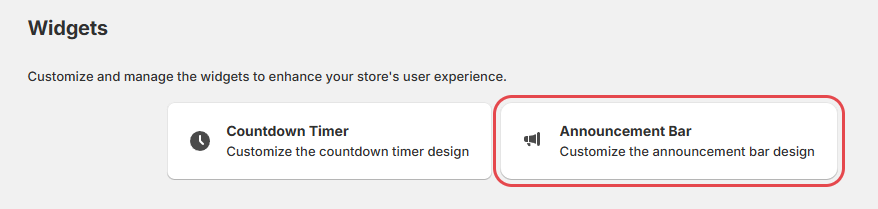
-
Click Sale order in the top right corner.

The button only shows up when you have at least two scheduled or active sales with an announcement.
-
Drag your sales into the order you want. The sale at the top is shown first.
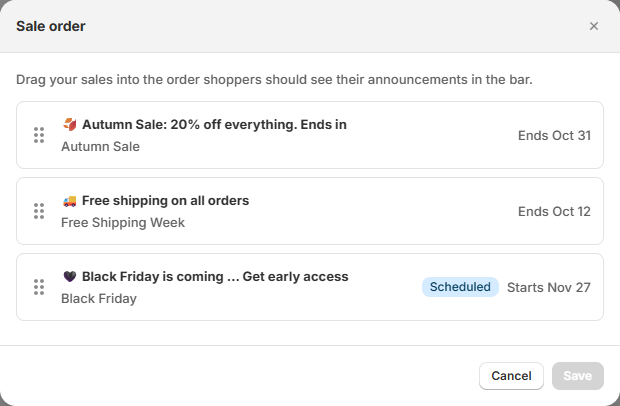
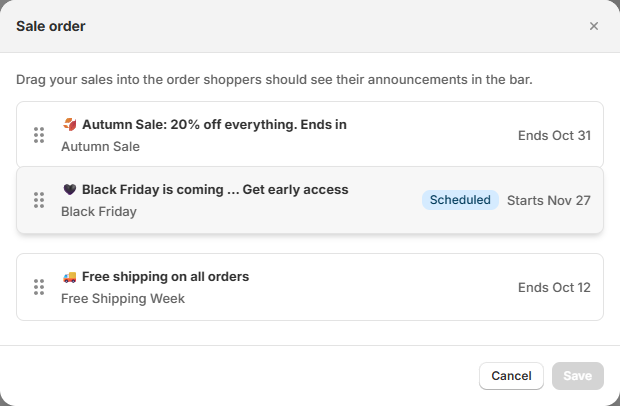
Each sale is listed by its announcement text, with the campaign name and its end date (or start date, if it hasn't started yet) next to it.
-
Click Save.
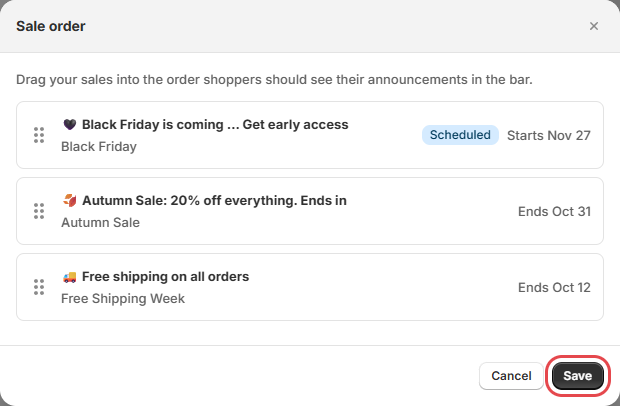
That's it. The next time a shopper loads a page in your store, the announcement bar uses your new order.
Good to know
- New sales are added at the end. When you create a new sale with an announcement, it's shown after the sales you've already ordered. Open Sale order again to move it.
- Ending or deleting a sale doesn't mix up the rest. The sale simply leaves the bar, and the other sales keep their order.
- Scheduled sales keep their spot when they start. You can put an upcoming sale in place ahead of time. It shows in the bar before it starts only if Show announcement before sale starts is turned on for that sale.
- Only the announcement bar is affected. Countdown timers and sale tags on your product pages aren't changed by the order.
- Changing the bar's colors or fonts doesn't change the order, and changing the order doesn't touch your design. They're saved separately.
Questions, or something doesn't look right? Send us an email at support@productessentials.app and we'll take a look.